
Cancelling a scheduled consult
How to cancel a scheduled consult
Important: Once a consult has been cancelled, it cannot be "un-cancelled". You will need to create a new consult.
From a patient profile
To cancel a scheduled consult, visit the consult page by going to My patients > selecting the patient > Consults tab and clicking on the start time of the consult.

Once on the consult page, scroll to the bottom and click Cancel consult.

From the Calendar view
To cancel a consult from your calendar, click on the calendar icon in the top right of your screen to get to the Calendar view.
Once in the calendar, select the consult you wish to cancel and click on the garbage can (delete) icon.
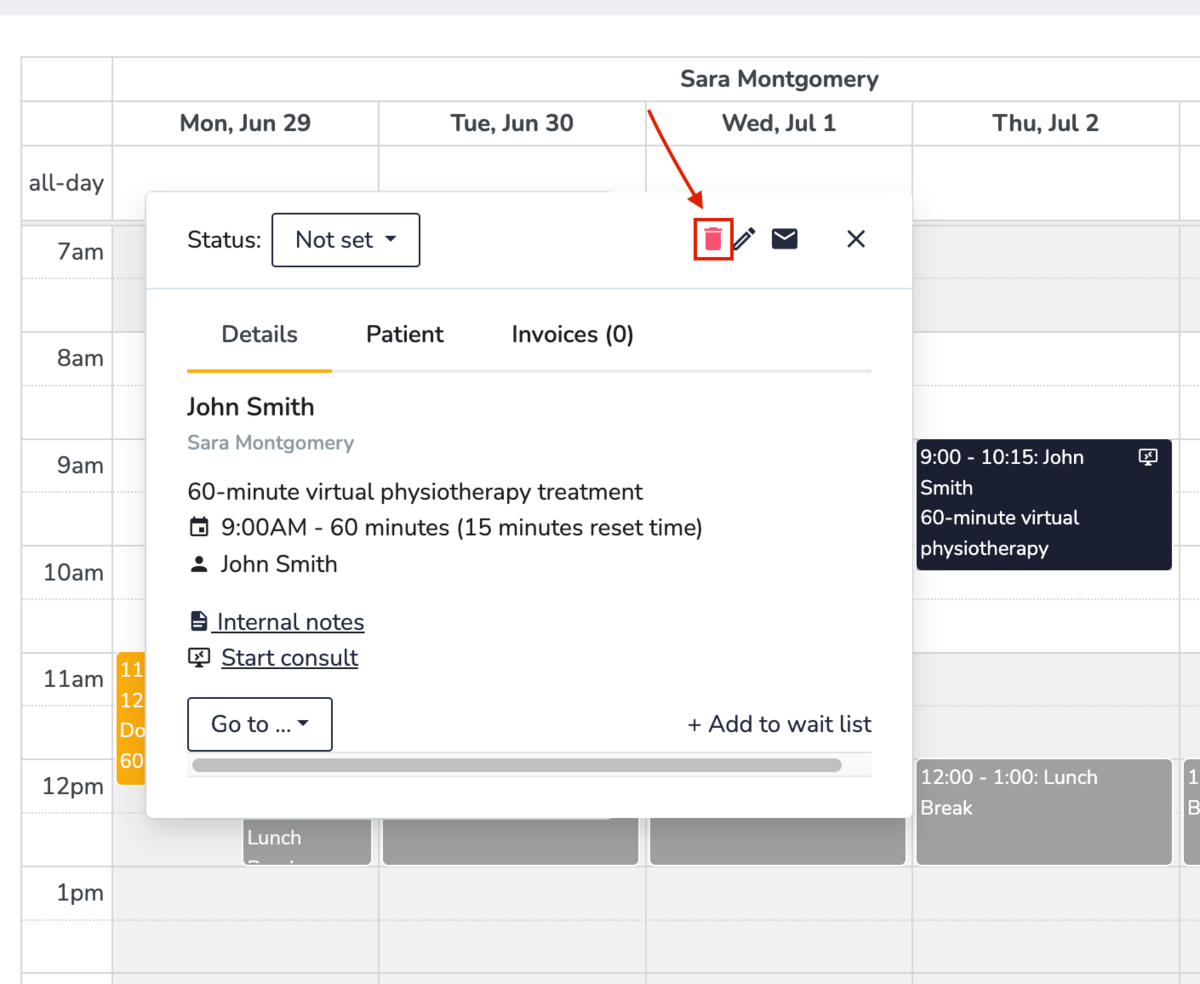
Since this action cannot be undone, to confirm whether you would like to cancel that particular consult, this pop-up confirmation will come up.
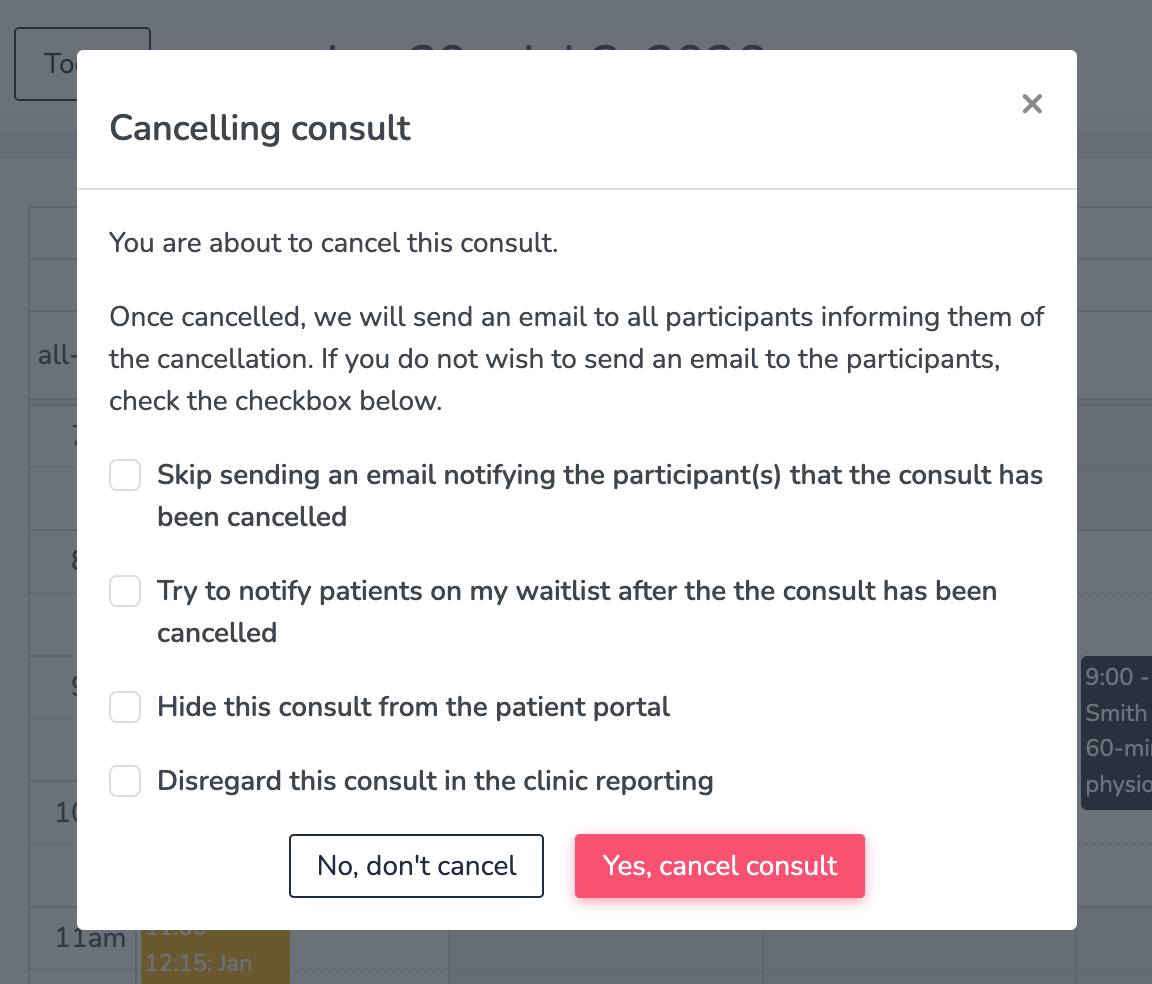
Here, you'll notice multiple optional actions to available to select when cancelling. Select any checkboxes you wish, then click Yes, cancel consult.
After the consult has been cancelled
What you will see
You will receive a confirmation that the consult has been cancelled that will look like this:

The consult will appear as cancelled in the Upcoming tab under My patients > Patient profile > Consults. Cancelled consults appear in red, indicating that they are cancelled. You will also see a 'Yes' in the Cancelled column for that consult.

What the patient will see
The patient will also receive an email informing them of the cancellation that looks like this, by default.

Note: The branding in automated emails, including this consult cancellation email, can be customized to display your branding instead of Embodia's. You can learn how to do this in our Contact information and branding guide.